
TiviMate IPTV
How to Install TiviMate IPTV Player on Windows 11 (Step-by-Step Guide)
If you’re looking for a smooth and reliable way to stream your favorite IPTV channels on a PC, then installing TiviMate IPTV Player on Windows 11 is a great option. While TiviMate is officially designed for Android devices, there’s an easy method to run it on your computer. This guide will walk you through the process step-by-step, even if you’re completely new to IPTV.

TiviMate IPTV Player on Windows 11
Introduction: Why Use TiviMate IPTV Player on Windows 11?
TiviMate has earned a strong reputation as one of the best IPTV players available today. It offers a sleek interface, easy navigation, and an overall premium viewing experience. However, many users prefer to enjoy their IPTV content on a larger screen like a desktop or laptop — especially when multitasking or watching live TV in HD.
Unfortunately, TiviMate doesn’t have a native Windows version. But don’t worry — with a few simple tools, you can run the TiviMate IPTV Player on Windows 11 experience everything it offers.

Step 1: Install an Android Emulator
Since TiviMate is built for Android, you’ll need an Android emulator to run it on your PC. An emulator acts as a virtual Android device inside your computer. The two most popular choices are:
BlueStacks – Best for beginners and easy to use.
LDPlayer – Lightweight and perfect for IPTV streaming.
How to Install the Emulator
Go to the official BlueStacks or LDPlayer website.
Download the latest version compatible with Windows 11.
Run the installer and follow the on-screen steps.
Once installed, sign in with your Google account — just like you would on an Android phone.
After setting up your emulator, your PC is ready to install Android apps, including TiviMate IPTV Player.
Step 2: Download and Install TiviMate IPTV Player
Now that your emulator is ready, it’s time to install the TiviMate IPTV app.
Option 1: Install via Google Play Store
Open your emulator and launch the Google Play Store.
In the search bar, type TiviMate IPTV Player.
Click Install and wait for the download to finish.
Option 2: Install via APK File
If you can’t find TiviMate on the Play Store, you can use an APK file:
Search “TiviMate IPTV APK latest version” on Google.
Download the file from a trusted source (avoid unknown sites).
In your emulator, drag and drop the APK file to install it automatically.
Once installed, you’ll see the TiviMate icon appear on your emulator’s home screen.
Step 3: Add Your IPTV Subscription
TiviMate itself doesn’t provide live TV or channels , it’s a player that lets you access content from your IPTV subscription.
To set it up:
Open the TiviMate app inside your emulator.
Click Add Playlist.
Enter your M3U URL or Xtream Codes provided by your IPTV provider.
Wait a few seconds while TiviMate loads your channels and categories.
Once done, you’ll have access to live TV, movies, and series right on your Windows 11 computer.
Step 4: Customize Your Viewing Experience
One of the best things about TiviMate for Windows 11 is how customizable it is. You can tweak settings to make your IPTV experience even better:
Change the interface theme (light or dark).
Create favorite lists for quick access.
Adjust EPG (Electronic Program Guide) for better scheduling.
Enable catch-up features if supported by your IPTV provider.
With these options, you can turn your Windows 11 PC into a complete home entertainment hub.
Step 5: Optional — Use a Remote Control or Gamepad
If you want an even smoother experience, you can connect a wireless remote or game controller to your PC. Most emulators, like BlueStacks, support external devices — making navigation inside TiviMate IPTV much easier, especially when switching between channels or adjusting volume.
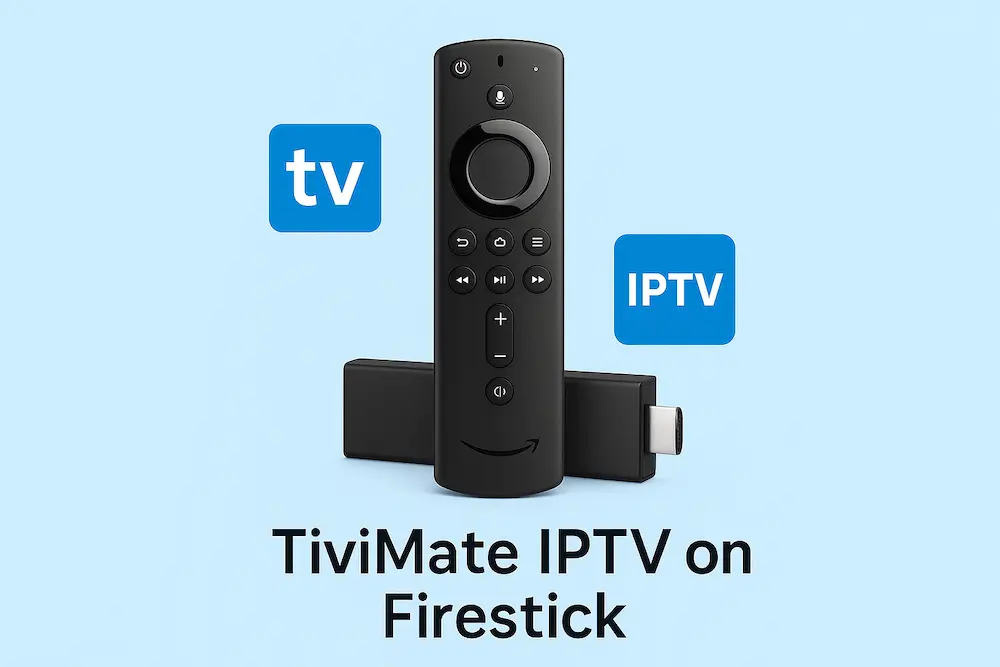
Bonus Tip: Try TiviMate IPTV on Firestick or Smart TV
If you later decide to use IPTV on your TV instead of your computer, TiviMate also works beautifully on Firestick, Android TV, and other smart devices. The installation process is slightly different, but the user interface remains the same , fast, clean, and user-friendly.
You can even sync your TiviMate IPTV Subscription across devices if your provider allows multiple connections. That way, you can watch from your TV, laptop, and smartphone without losing progress or playlists.
Troubleshooting Common Issues
If you run into problems while setting up TiviMate IPTV Player on Windows 11, here are a few quick fixes:
App not installing: Check if your emulator is up to date.
Channels not loading: Recheck your IPTV URL or subscription status.
Playback buffering: Try switching to another server or connect via Ethernet.
App crash: Clear emulator cache or reinstall the app.
These small steps usually fix most issues without much effort.
Troubleshooting Common Issues
If you run into problems while setting up TiviMate IPTV Player on Windows 11, here are a few quick fixes:
App not installing: Check if your emulator is up to date.
Channels not loading: Recheck your IPTV URL or subscription status.
Playback buffering: Try switching to another server or connect via Ethernet.
App crash: Clear emulator cache or reinstall the app.
These small steps usually fix most issues without much effort.

Still have questions?
If you have any other questions or need further information, don’t hesitate to contact us .
Conclusion
Installing TiviMate IPTV Player on Windows 11 might sound technical at first, but it’s actually quite simple once you follow the right steps. Using an Android emulator gives you the flexibility to enjoy your favorite IPTV channels on a bigger screen, with the same powerful features that TiviMate is known for.
Whether you’re testing a new IPTV subscription, watching live sports, or exploring on-demand content — TiviMate IPTV Player on Windows 11 makes your viewing experience smoother and more enjoyable.
So go ahead, set it up today, and discover why millions of users consider TiviMate IPTV one of the best IPTV players for Windows.
Would you like me to also create an SEO meta title and description (for your website/blog page) to go with this article? It’ll help the post rank better on Google.